
Copy and paste a screenshot in seconds
For: anyone who needs to show a colleague, a client or a support desk what is on their screen right now, without a trip through an editor first.
"Here's what I'm seeing" should take one hotkey, not a screenshot tool, a save dialog and an upload button. The shot usually goes into a chat, an email or a ticket, and all it needs to be is the right region, at full size, on the clipboard.
The flow
- Press
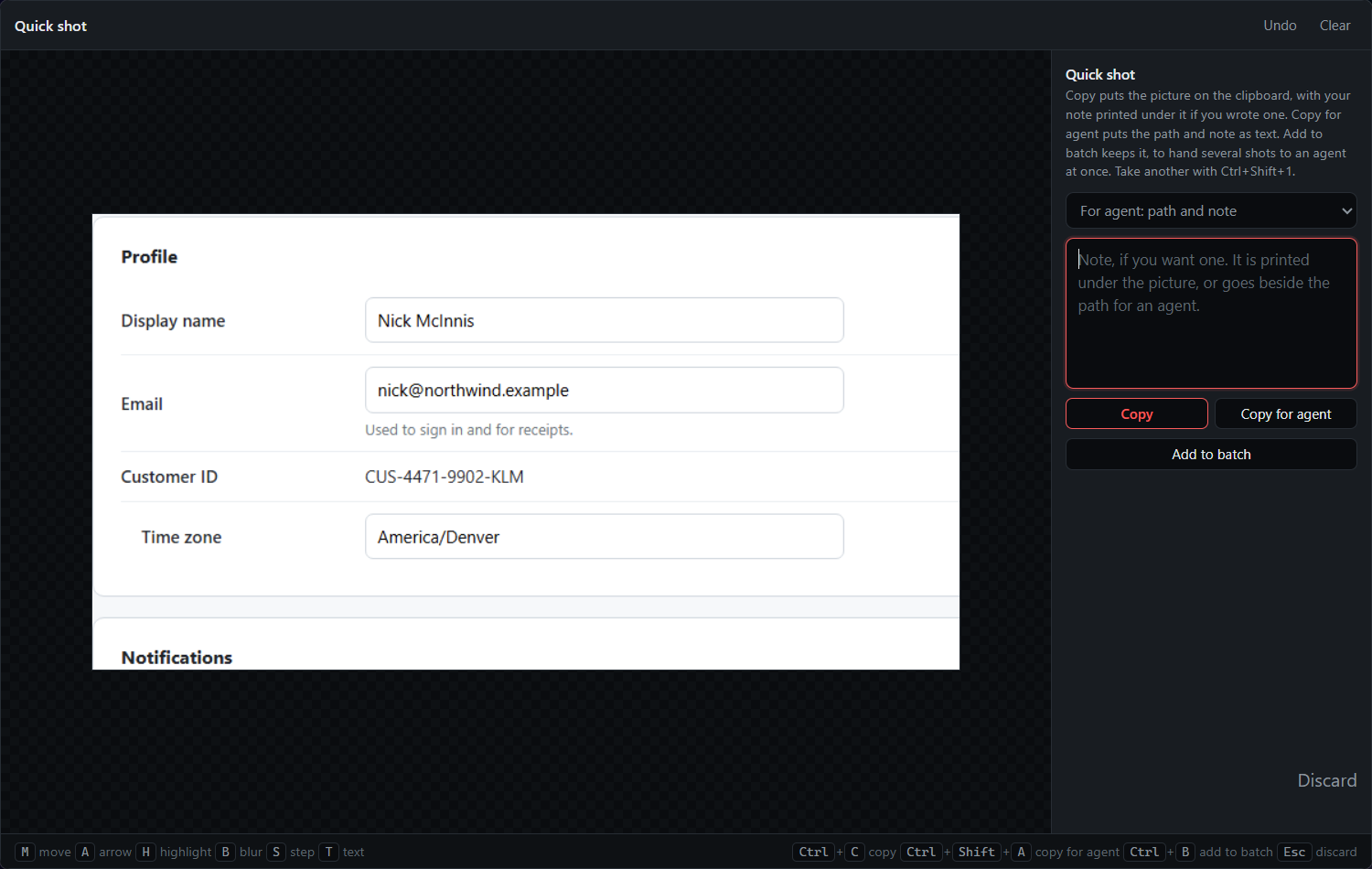
Ctrl+Shift+1. The screen freezes. - Drag the region you want. The shot opens large, with the markup tools along the top and a note box beside it.
- Press Copy, or
Ctrl+C. The screenshot is on the clipboard as an image. - Paste it into Teams, Slack, an email or a ticket.
- The window closes. The shot is kept under
~/QACut/Quick/if you need it again.
No note is needed for a person. The note box is there for the times you hand a shot to an AI agent instead.
What you get
An image on the clipboard, pasted straight into whatever you were writing. The same shot is also saved on disk, in a batch folder under ~/QACut/Quick/ named for when the batch started:
C:\Users\nick\QACut\Quick\2026-09-19_101512\01.pngA notes.md in the folder lists every shot in the batch, and any note you did type sits beside its shot as a small markdown file. So the screenshot you pasted into a chat this morning is still there this afternoon when someone asks for it again.
Tips
- Each new quick shot joins the open batch, and the note box header counts them, so a morning's screenshots end up in one folder rather than scattered across the desktop.
- Every default hotkey can be changed under Keyboard shortcuts… in the tray. If another app already owns
Ctrl+Shift+1, QACut reports it and the rest still apply. - Copy writes any marks you drew into the file first, so the saved shot matches what you pasted.
- Type a note first and Copy prints it in a band under the picture. Copy for agent (
Ctrl+Shift+A) is the agent version: the path and the note as text.
Related
- Mark up a screenshot and paste it anywhere, when the shot needs an arrow or a blur first.
- Send screenshots and notes to an AI agent, when the reader is an agent, not a person.
- Organize screenshots into a document and export it, when one shot becomes twenty.
- Quick shots in the docs.