
Mark up a screenshot and paste it anywhere
For: anyone answering "which button do you mean?" for a colleague or a customer, when the screenshot has to point at the thing and hide what should not leave the building.
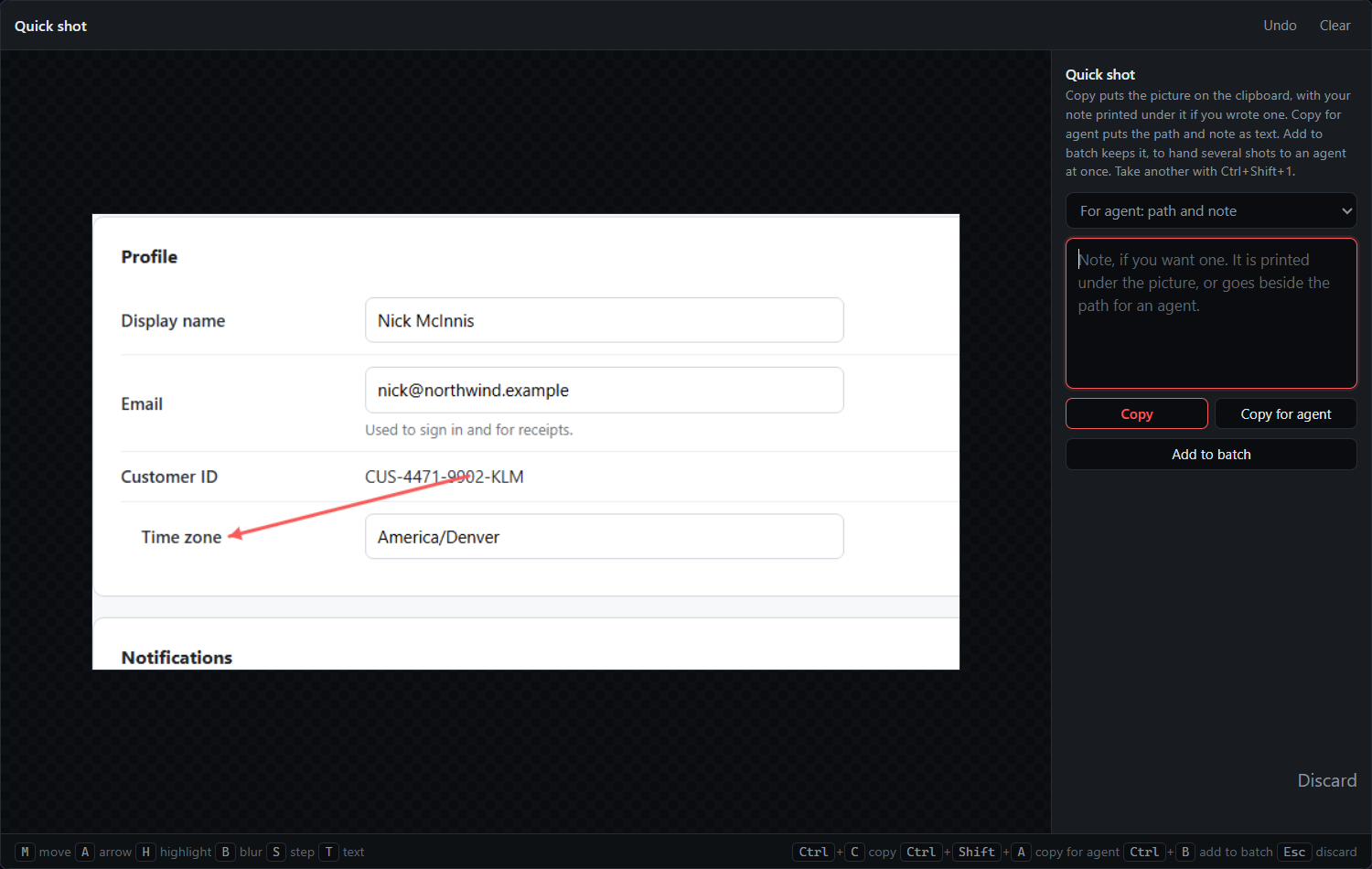
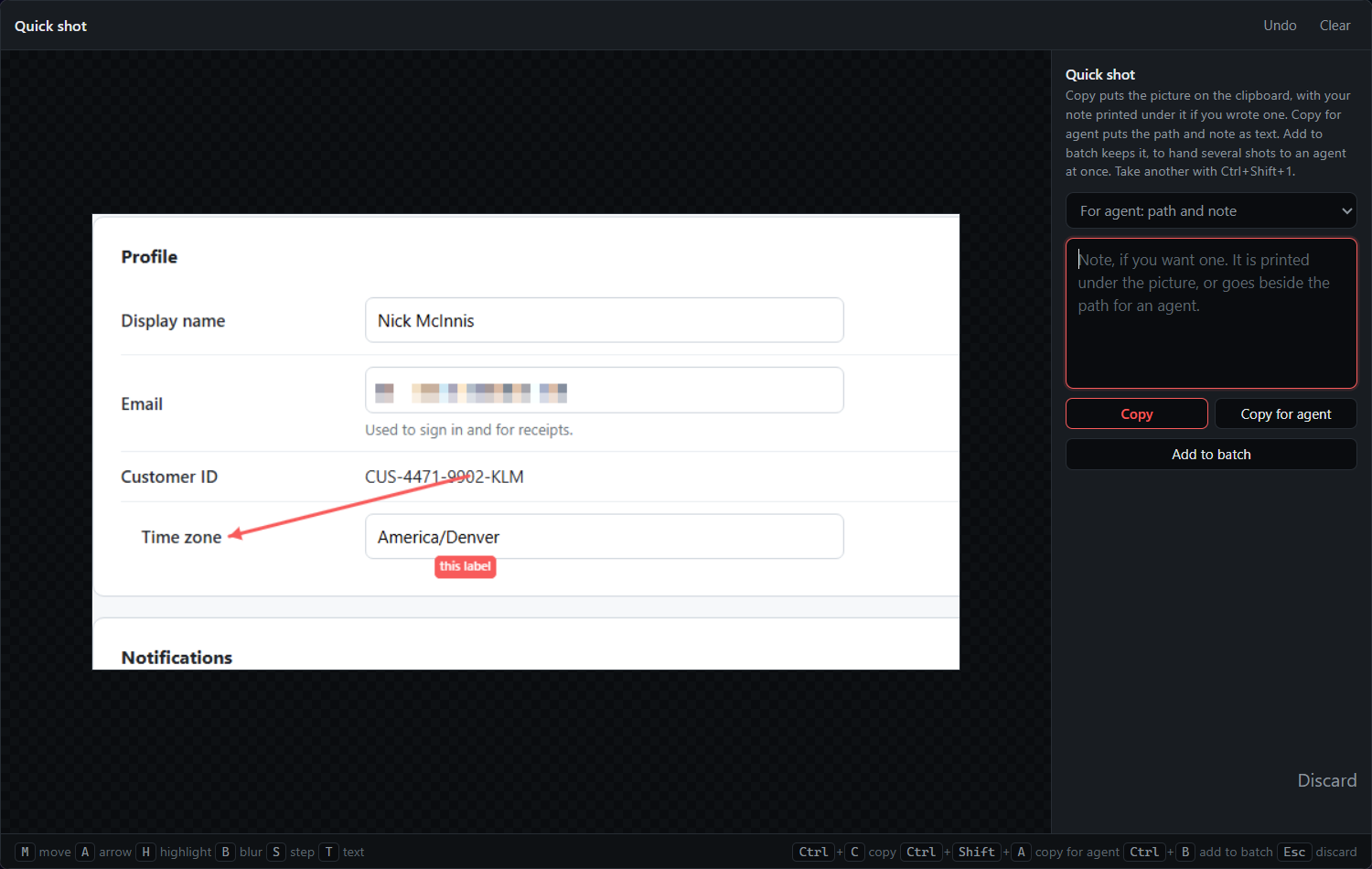
A raw screenshot makes the reader hunt. An arrow on the button, a highlight on the field and the customer's name pixelated out turns it into an instruction. Most screenshot tools do this in a second editor with a second save; in QACut Basic the tools are already in the window the shot opened in.
The flow
- Press
Ctrl+Shift+1and drag the region. The shot opens large with the tools along the top. - Pick a tool: Arrow, Highlight, Blur, the Step counter or a Text label, and draw on the shot. The keys
A,H,B,SandTpick the same tools;Mgoes back to moving marks. The swatches beside the tools pick the colour, for the next mark or the selected one. - Nudge a mark with the arrow keys (ten pixels at a time with
Shift),Deleteremoves the selected one, andCtrl+Zundoes. - Press Copy, or
Ctrl+C. - Paste into the chat, the email or the ticket.
What you get
The marked-up screenshot on the clipboard as an image, ready to paste anywhere that takes one. On disk, ~/QACut/Quick/ holds two files for the shot:
2026-09-21_093656.png        the shot with your marks
2026-09-21_093656.orig.png   the untouched original
So you can send the arrow-and-blur version now and still have the clean capture if someone needs it later.
Tips
- Blur is pixelation. The text underneath is really gone from the saved shot, not softened, so an account number or a name cannot be recovered by sharpening the image.
- The Step counter puts numbered markers on the shot, the fastest way to say "first here, then here, then here" on a single screenshot.
- Copy writes the marks into the file before it copies, so the saved shot and the pasted one are the same picture.
- Type a note and Copy prints it in a band under the picture, so the explanation travels with it. A Text label is the other way: words placed right on the thing they are about.
Related
- Copy and paste a screenshot in seconds, when the shot needs no marks at all.
- Send screenshots and notes to an AI agent, when the reader is an agent and the note does the pointing.
- Organize screenshots into a document and export it: the same tools on every shot in a bundle, from the bundle window.
- Quick shots in the docs.