
Quick shots
QACut Basic is the quick lane. A quick shot is one screenshot, marked up if you like, with a note if you like, and then one decision: Copy it for a person, Copy for agent, Add to batch to hand several to an agent at once, or Discard.
Taking one
Ctrl+Shift+1 freezes the screen. Drag a region and the shot opens large, with the note beside it and the markup tools along the bottom: click one or press its key, and the one in use shows in red. Mark it up if it helps: arrow, highlight, blur, step counters, or a Text label typed straight onto the picture. The swatches in the toolbar set the colour of the next mark, or of the one selected; a label's text is dark or light to suit its colour. Drag a label's corner handle to make it wrap, double-click it to reword it. Add a note if the picture needs words. Then say who it is for:
- Copy (
Ctrl+C) is for a person. The picture goes on the clipboard, and if you wrote a note it is printed in a band under the picture, so the two travel together into Teams, Slack, an email or a ticket. No note, no band. - Copy for agent (
Ctrl+Shift+A) is for an agent. The screenshot's path and your note go on the clipboard as text, ready to paste into a terminal with whatever else you want to say. The A is the tell. - Add to batch (
Ctrl+B) keeps the shot for later, with others, for one hand-off to an agent. - Discard (
Esc) deletes it.
Copy and Copy for agent leave the shot on disk too, so it is there if you need it again.
Frame in the toolbar dresses what Copy produces: the shot on one of the studio's gradients, or on a picture from your brand folder, with padding, rounded corners and a shadow, and the note printed below it. The same frame goes around every screenshot in an exported document. The choice is remembered, and the files on disk stay plain, so an agent never gets padding. When the defaults do not quite fit one shot, Adjust beside the Frame select tunes it for that shot alone: its size and position on the picture, which part of the picture to keep, padding, corners and shadow, with a preview of the copy. Use defaults drops the changes.
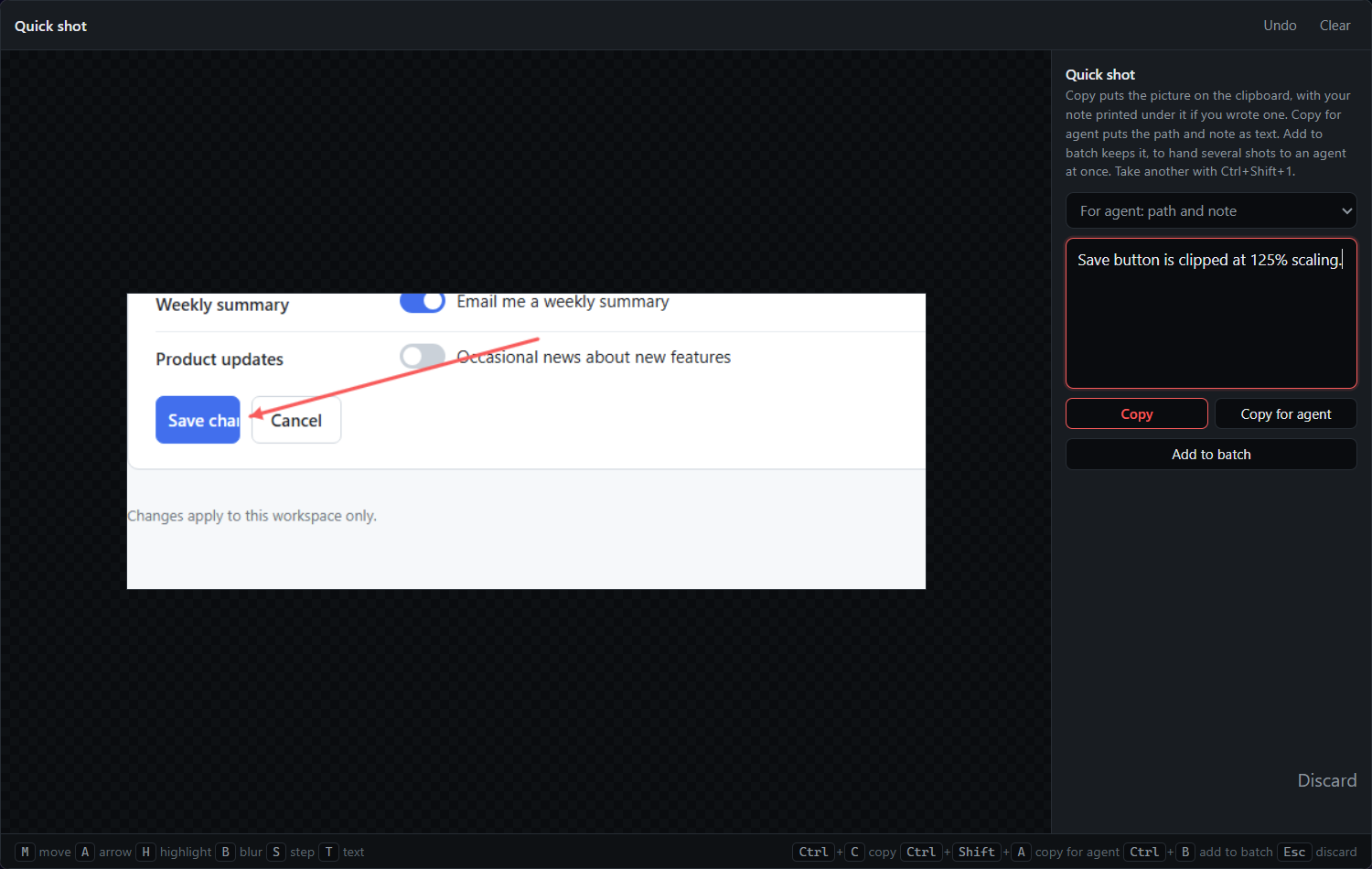
C:\Users\nick\QACut\Quick\2026-09-19_101512\01.png
The save button is clipped at 125% scaling.
A shot on its own lands under ~/QACut/Quick/, named for the moment you took it, with the note beside it as a small markdown file. A batch is a folder there, named for when it started, with the shots numbered inside and a notes.md listing them.
Sending it to a person
Draw an arrow, highlight the button, blur the account number, put a text label where words help, type a note if it needs one, and press Ctrl+C. The shot arrives with the note printed in a band under it, so the picture and the explanation travel together and nothing is covered. If the screenshot speaks for itself, skip the note and Copy gives you the picture alone.
Sending a few together
Press Add to batch (Ctrl+B) instead of copying, then take the next shot. The batch is a pile of shots waiting for one hand-off: the window shows how many are in it, and Show batch opens a strip of them along the bottom. Click one to open it again, change its marks or its note and Save to batch; the × drops it. Copy batch for agent in the strip (or Copy quick batch for agent in the tray) copies every shot's path and note, plus a line naming the folder, in one paste, and closes the batch.
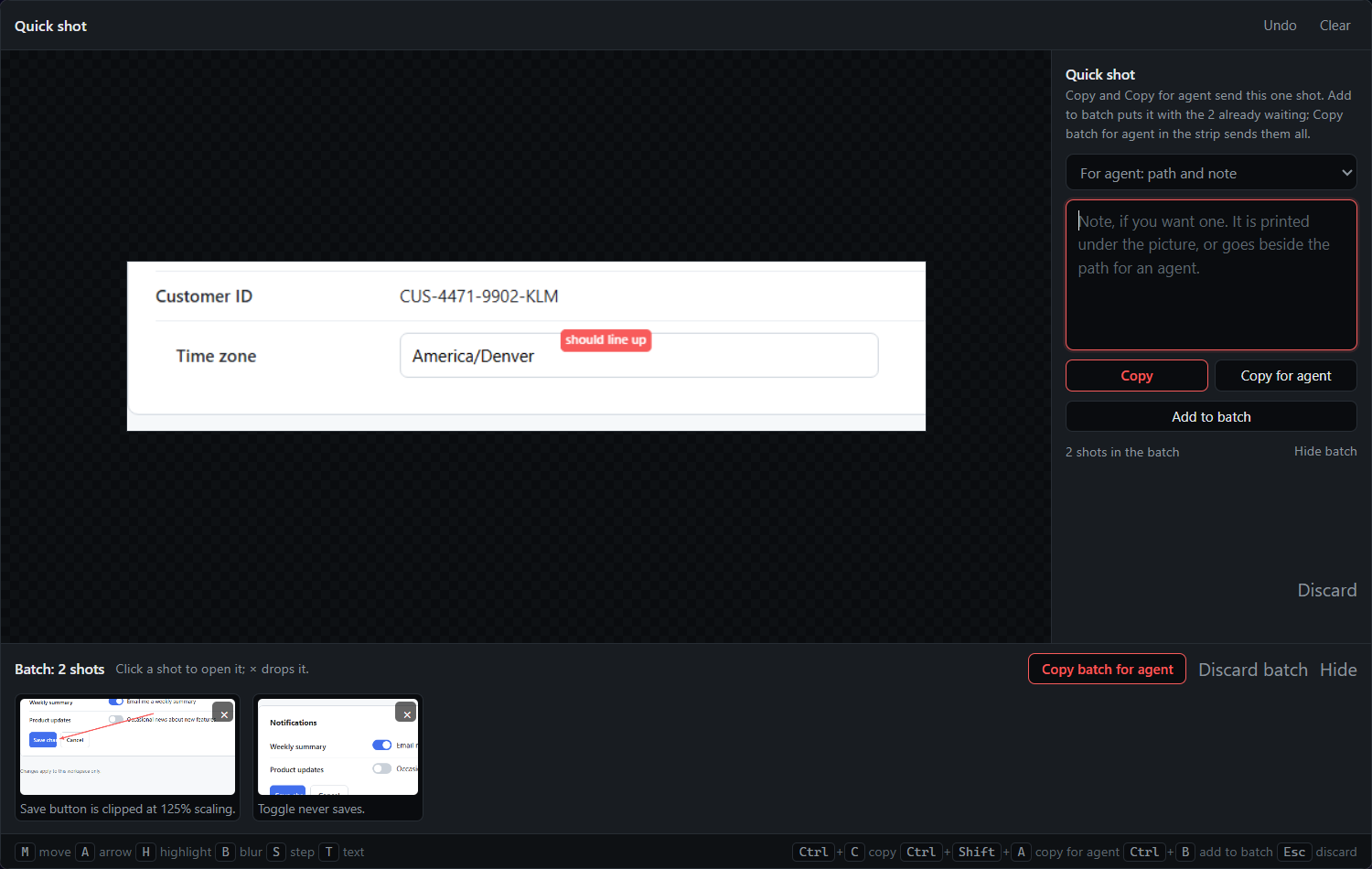
Closing matters: the next Add to batch starts a fresh folder, so an agent is never pointed at shots you have already dealt with. Discard batch in the strip throws the whole pile away.
Your own wording
Prompt library… in the tray (or Hand off → Prompt library… in the bundle window) lets you rewrite what goes on the clipboard: the single-shot line, the batch preamble, and the bundle prompts. Words in braces such as {path} and {note} are filled in. Reset puts a default back.
You can also add prompts of your own and pick one before a hand-off. A quick-shot prompt wraps the shots: write the instruction and put {shots} where the paths and notes should go, or leave it out and they are appended. Once you have one, the quick shot window shows a "For agent" picker above the note; it applies to Copy for agent and to the batch hand-off.
When to use a bundle instead
Use quick shots and batches for one-off fixes and short sessions. Use a bundle when there are enough shots across enough pages that an agent needs groups and master notes to keep them straight, when you want auto-capture to record a process, when you want a document out of it, or when the hand-off should carry a purpose-specific prompt and your brand kit.