
Getting started
QACut lives in the system tray. There is no window to open first: press a hotkey, drag a region, do the thing.
Install
Download QACut for Windows and run it. There is an MSI too, for deployment tooling, and every version is on the releases page. Windows 10 (2004 or later) or Windows 11, 64-bit.
The app and its installers are code-signed. While the certificate is new, SmartScreen may still warn on first run; choose More info, then Run anyway. That fades as the certificate builds a record.
After install, look for the coral scissors in the tray. Left-click it for the menu.
Updating. QACut checks for a newer release shortly after it starts and offers to install it; Check for updates... in the tray menu does the same on demand. The installer runs in place, nothing to uninstall first, and your bundles, settings and prompts stay where they are.
Three tools, one tray
The menu has three sections.
QACut Basic is the quick lane: one screenshot, one note, pasted straight into an agent. Read Quick shots.
QACut Bundles is the structured lane: screenshots, auto-captured sequences, notes and groups, bundled into a folder for an AI agent to work from. Read Bundles for agents.
QACut Studio is for people: a screen recording edited into something polished, with zooms, a camera bubble and narration, exported as a video. Read Polished screen recordings.
Both put their files under ~/QACut/. Everything is plain files you can open, move or delete.
Your first bundle
- Press
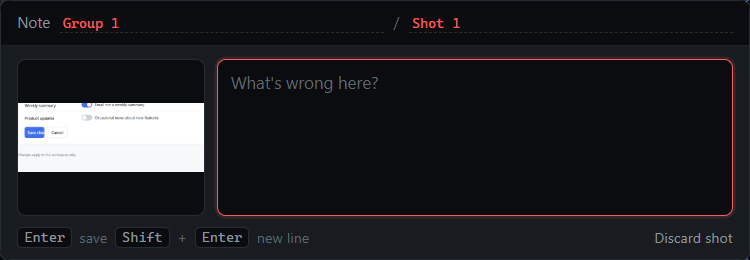
Ctrl+Shift+2. The screen freezes. Drag a region. - Type what is wrong, or what this is, and press
Enter. PressEscto keep the shot with no note. - Repeat. Press
Ctrl+Shift+Gwhen you move to a new page or area, and give the group you just finished a master note. - Press
Ctrl+Shift+Enterto write the bundle. The folder path is on your clipboard and the bundle window opens showing the result.
Point an agent at the folder, or use Copy agent prompt in the bundle window for a ready-made instruction. The bundle is finished; your next capture starts a new one.
For a one-off, skip the bundle: Ctrl+Shift+1 takes a quick shot. Copy (Ctrl+C) copies the picture, with your note printed under it if you wrote one, for a person; Copy for agent (Ctrl+Shift+A) copies the screenshot's path and the note as text; Add to batch keeps it for one hand-off with more shots.
Your first Studio recording
- Press
Ctrl+Shift+R, drag the region to record, adjust its edges, and press Record. A three-second countdown lets you get in place. - Do the thing. Press
Ctrl+Spaceto zoom in where the cursor is, and again to zoom out. - Press
Ctrl+Shift+Rto stop. The studio opens on the recording. - Trim, adjust the zooms, add a title, and press Export….
Turn on the microphone and camera toggles in the tray's Studio section first if you want narration and a camera bubble.
Where things go
~/QACut/
  2026-09-17_143022-settings-review/   a bundle
  Studio/2026-09-18_125833-onedrive/   a studio recording
  brand/                                your logo, colours and voice notes
  settings.json                         shortcuts and toggles